One scene before plugins
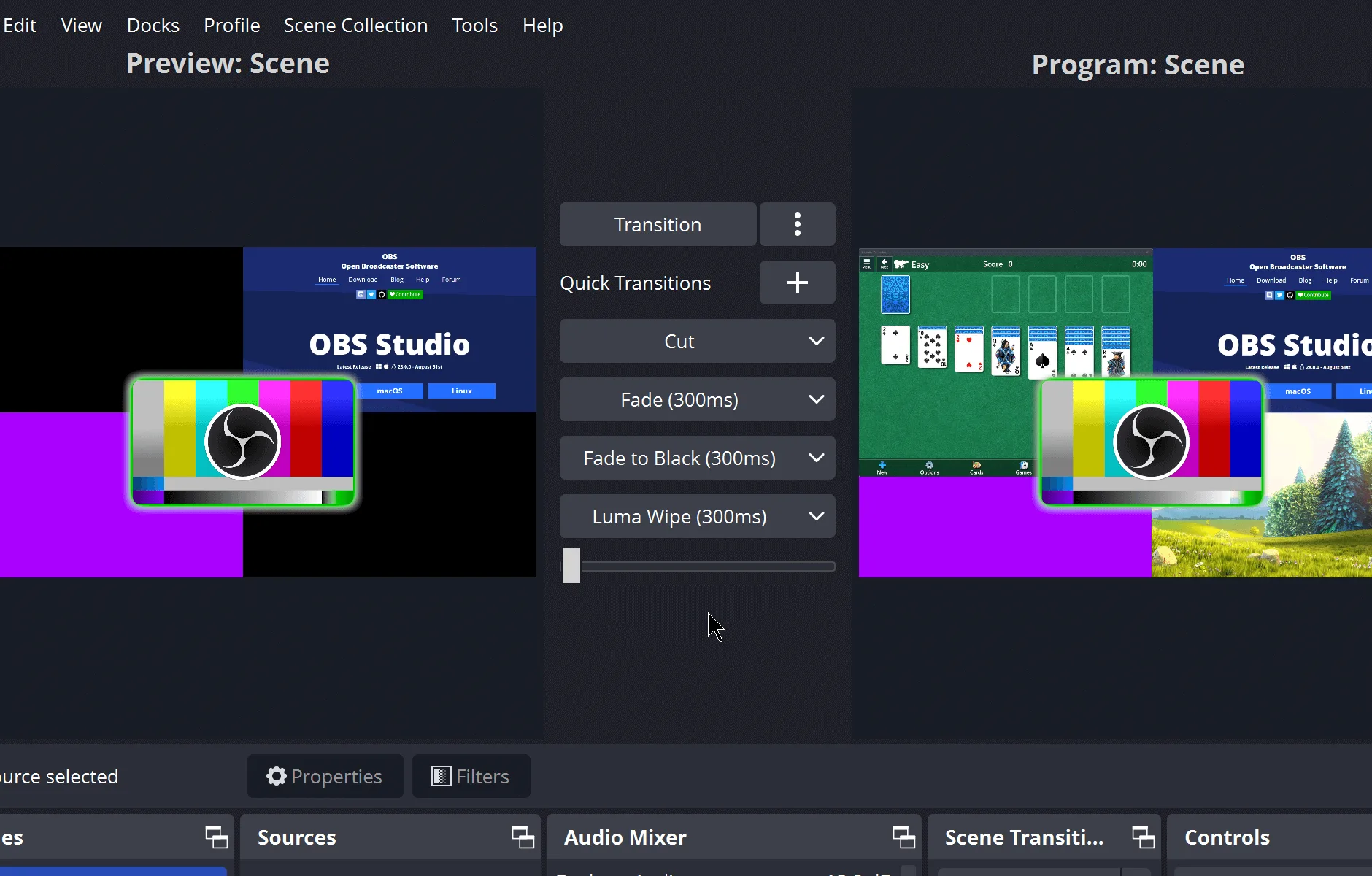
OBS Studio rewards a boring first scene. Open the app from the Start menu after install on Windows or winget. In the Scenes dock, keep a single scene with a name you will recognise later, such as “Window test”. Resist docks full of unused sources. You can duplicate the scene when the layout actually changes.
Auto-configuration may offer resolution and encoder guesses. Accept something sensible or skip and revisit Output after the canvas shows a real window. The goal for hour one is a file on disk, not a perfect bitrate chart.
Window Capture as the first source
Add Source, choose Window Capture, and pick the program you already have open. Window Capture keeps other desktop clutter out of the take, which is the protective choice on a shared PC. If the preview is black, try Display Capture for a moment to confirm the app can draw, then return to Window Capture or try Game Capture for fullscreen games. Resize the source on the canvas so the bounding box matches what you want recorded.
Name the source after the program. When you add a second window later, clear names prevent mute confusion. Figure of the main window: see home’s apps still, and keep this guide focused on the docks.
Output folder before the red button
Open Settings, Output (or Settings, Recording depending on mode), and set a recording path under a folder you created. Default locations are easy to lose under Videos. A dedicated folder makes the ten-second test obvious. Container and encoder can stay on defaults for the first file. NVIDIA users can move to NVENC after playback works; see NVENC.
Ten-second test record
Hit Start Recording. Move the target window, speak if the mic is already live, then Stop Recording. Open the folder and play the file in a normal player. If video is fine but audio is missing, leave the scene alone and fix the mixer next. If video is black, change capture type before you download another copy of OBS Studio.
Microphone and desktop audio
Watch the mixer meters. Desktop audio should move when the captured program makes sound. Add Audio Input Capture for your microphone if the mic meter stays flat. Keep filters off until a clean talk test peaks without clipping. You are proving levels, not building a podcast chain.
When to add Game Capture or Display Capture
Game Capture is the usual path for fullscreen games once Window Capture fails to hook them. Display Capture is the whole monitor; use it when you need multiple windows visible, and close anything private first. Keep the first scene simple: one game source or one display, not both fighting. Migration from Win+G clips: switch from Game Bar and move off Game Bar.
Duplicate scenes instead of overwriting
When you need a second layout, duplicate the working scene and change sources on the copy. That preserves the known-good test scene. Scene collections are separate from recordings; back up collections if you invest time in them. Virtual camera can wait until the scene looks right: virtual camera.
Common first-scene mistakes
Adding every source type at once. Starting a stream before a local file plays. Leaving Game Bar and OBS Studio hotkeys overlapping on the same game. Mixing a portable zip with a Program Files install so two windows edit different copies of the same collection. Freezing an old guide’s bitrate as forever. Fix by changing one variable at a time and keeping winget id OBSProject.OBSStudio or the GitHub x64 exe as your only update doors.
Frequently asked questions
What should my first scene include?
One scene and one Window Capture you understand. Add mic audio after the picture works. Related: record locally. Match the Windows x64 installer or winget id OBSProject.OBSStudio against the current GitHub release before you change anything else.
Why is the preview black?
Wrong capture type for that window. Switch among Window, Display, and Game Capture. Related: for this computer. Match the Windows x64 installer or winget id OBSProject.OBSStudio against the current GitHub release before you change anything else. Match the Windows x64 installer or winget id OBSProject.OBSStudio against the current GitHub release before you change anything else.
Do I need a stream key first?
No. Local record needs no stream key. Add a service later under Settings, Stream. Match the Windows x64 installer or winget id OBSProject.OBSStudio against the current GitHub release before you change anything else. Match the Windows x64 installer or winget id OBSProject.OBSStudio against the current GitHub release before you change anything else.
Can I copy a scene from Game Bar?
Game Bar clips do not import as scenes. Recreate the window as a source. Related: switch from Game Bar. Match the Windows x64 installer or winget id OBSProject.OBSStudio against the current GitHub release before you change anything else.
Where is the recording saved?
In the folder under Settings, Output. Change it before a long take. Match the Windows x64 installer or winget id OBSProject.OBSStudio against the current GitHub release before you change anything else. Match the Windows x64 installer or winget id OBSProject.OBSStudio against the current GitHub release before you change anything else.